Yes, hiding is different from uninstalling. You can surely use the hidden apps.
How to Hide Apps on Your iPhone Without Deleting Them
POST BY
PUBLISHED
July 30, 2026
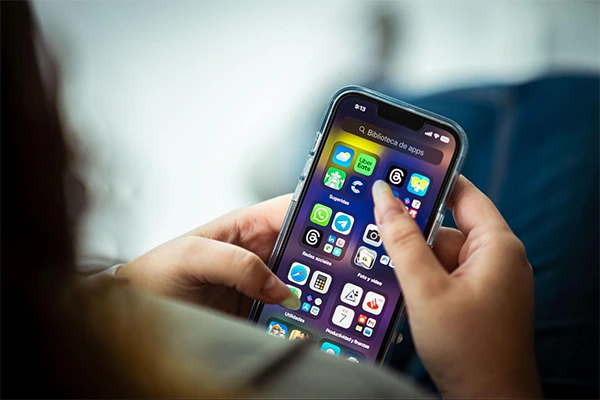
We keep installing apps without realizing it. In a Pew survey, 38% of people reported having more than 20 apps on their device, and 7% reported having 50 or more. With banking, messaging, work, dating, and other personal apps mixed, you may not want everything sitting visibly on your Home Screen.
Fortunately, you can hide apps instead of deleting them. Your iPhone gives you several ways to keep apps out of sight while retaining their data and functionality.
The hidden apps neither show up on the Home Screen nor in Search. Newer iOS versions can even lock or hide certain apps behind Face ID.
This guide explains each of these methods in detail. Now, you can create a cleaner, more private iPhone without giving up the apps you need.
Table of Contents:
How Do We Hide Apps from the iPhone Home Screen?
Now, let’s start with the simplest, shall we?
You can use two ways to remove apps from your iPhone home screen. You can either hide the apps individually (one by one) or hide an entire page of apps.
Any app you hide is sent to the Library (an organized list of each app in your iPhone; you can get it by simply swiping to the last page of the home screen).
So, let’s look at all the methods one by one;
Hide a Single iPhone App
To hide an app on your start screen, find it first. Tap and hold it until you get your iPhone’s usual tactile cue with long-press actions. It may provide a pop-out menu with several options that vary depending on the application in question. Now, you want the option in red: Remove App; tap it.
Just like that, you just made an app disappear, remaining installed!
Just like you learned this method, learning new languages is also as easy with top language learning apps.
How to Hide an Entire Page of Apps
Are you bold enough and want to hide an entire page of apps? Don’t worry; it’s an easy process.
First, you need to press and hold your finger on a space on your home screen, on the dots at the bottom.
You should hold it until your iPhone screen zooms out and shows each page simultaneously. You can lift a finger and tap the dots once you see the apps shaking without zooming out.
After that, find the page with the thumbnails you’re looking to hide, and then tap the checkmark to ensure that the check disappears. All you need to do now is tap “Done” in the top-right corner, and that’s it! However, that doesn’t mean that the page will disappear from the menu when unchecked; you can make the page reappear by simply checking the circle right under the page.
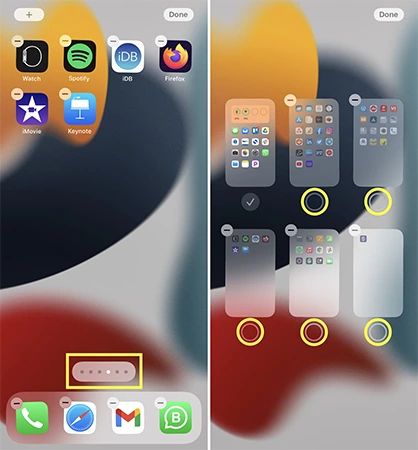
You should note that just like when you hide a single app, the apps will still show in the Application Library when you hide an entire page of apps. If you want to locate any hidden app on your iPhone, you simply swipe down on the home screen, open your search feature, type the name of the application you want to find, and tap the app icon to open it.
Besides, you can press and hold your iPhone’s side button and activate Siri, then ask Siri to open your desired app.
Also, you can swipe left on the home screen of your iPhone for the App Library. Browse, and when you find it, tap the icon you’re looking for.
Will the apps still appear on search?
Don’t worry; you can still archive apps so they won’t appear on search – but how?
Hide Apps Not to Appear in Search
You can discover your hidden apps easily by simply searching for them. Now, that for many is without a doubt a privacy concern.
So, how can you hide the apps from search?
The good news is that there’s a way to hide your apps from search. Here’s how:
- Open your “Settings app” and then scroll down to “Siri & Search.”
- Click on the app you want to exclude from appearing in searches and scroll down
- Secondly, turn off “Show App in Search” by tapping the toggle (it will turn gray).
If you want to ensure everything is in place, you can disable “Suggest App” and “Suggestion Notifications.”
Moreover, you should hide your apps and stop the notifications on such apps not to show. So, here’s how to do it using Focus mode;
- Head to Settings > Focus
- You need to create a new Focus mode by simply tapping on the ‘+’ sign
- Select Custom, and you can give your Focus mode a name of your choosing
- Now tap Next > Customize Focus
When you don’t want notifications for some apps, simply choose the apps you would like to not get notifications for. Now, check out the option Allow Notifications. From then on, uncheck all the needed apps.
And yes. Hiding apps on your iPhone is a useful first step toward protecting your personal information, but it shouldn’t be your only privacy measure.
If you want to strengthen your digital security beyond your Home Screen, explore this guide to the best online privacy tools. It covers trusted solutions that help protect your data, reduce online tracking, and support a more secure digital experience—reflecting our commitment to helping you stay prepared for today’s privacy challenges and tomorrow’s evolving threats.
Conclusion
Whether you want privacy for your app information or are simply looking to tidy your iPhone home screen, hiding your apps is the best way. First, it lets you keep your privacy intact, and then keeps you organized. Interestingly, when you hide your app, it means you can still use it whenever you want. However, if you want to get rid of an application completely, you’ll have to delete it.
FAQs
Can you hide an app on an iPhone and still use it?
How do I permanently hide an app?
If you mean permanent removal, consider disabling or uninstalling the app.
Is there a secret mode on iPhone?
iPhones do have the incognito mode, which Apple calls Private Browsing. You can use this feature in Safari.