Most AI video generators create short clips around 3 to 15 seconds only, but specialized generators can actually create longer, multi-scene clips up to 50 to 60 minutes.
From Product Photos to Longer AI Videos: A Practical Workflow
POST BY
PUBLISHED
October 22, 2026
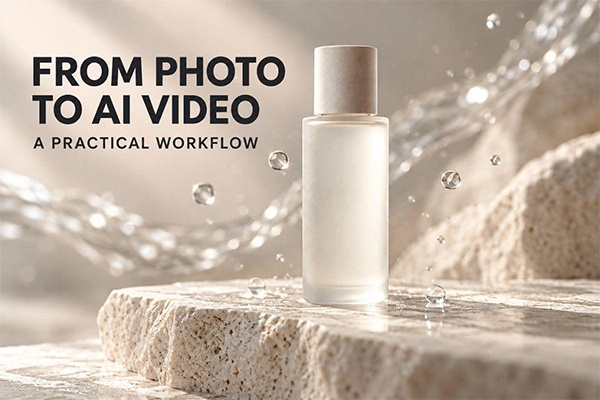
A picture of a product can look very neat and finished while leaving a video idea unresolved. The picture is absolutely perfect; the background is working well, the bottle is well lit, and the competition is also clear, but what is missing is just a simple little movement, a softer ending video, or maybe enough time for people to notice the details that the product might want to show.
And that is where AI video comes in. Just give the picture one small but clear action and see the magic. You can easily review the final clip.
Table of Contents:
Start With One Product Photo and a Clear Video Idea
GoEnhance AI is an online image and video creation software. If you are exploring image to video free options, its photo animation workflow provides a starting point for testing motion from an existing picture. Check the available trial credits and model access before generating; free access does not mean every setting is included.
Once you have a usable opening, an AI video extender can create a continuation. The two stages answer different questions: how should this photograph start moving, and what should happen after the resulting clip ends?
Before opening any tool, make sure to write a one-sentence brief. For our example: “Show the bottle clearly, move closer to its frosted glass texture, and finish with a calm composition for a short caption.”
That sentence gives you a basis for judging every generation. A dramatic orbit might look impressive, but it would not necessarily serve this particular brief.
Choose a Photo That Supports Natural Motion
Begin with a photograph in which the product already looks correct. Check the cap, label, edges, reflections, and relationship between the bottle and its surface. Existing errors give the generation process an unreliable reference.
Leave room around the subject. If the bottle almost touches every edge, a push-in can quickly crop its cap or base. A slightly wider original gives you more flexibility when deciding movement and preparing different final formats.
For this example, imagine a single bottle standing on a pale stone surface, with a softly blurred background and light arriving from the left. It offers a clear subject without requiring the model to coordinate hands, liquid, packaging, and multiple moving objects.
Pick the movement that the photograph can plausibly support. A gentle camera approach requires relatively little new visual detail. A full rotation asks the model to invent the unseen sides of the product. For branded packaging, that is a much harder result to trust.
Turn the Photo Into the First Video Clip
Upload the photograph, pick an available model, and choose the intended format where the interface allows it. Then describe the movement instead of rewriting everything visible in the picture.
A starting prompt could read:
The camera slowly moves closer to the skincare bottle on the stone surface. The bottle remains stationary and fully visible. Preserve its original proportions, cap, label, and frosted glass appearance. Maintain the soft light from the left and the existing background. One continuous shot with restrained, realistic movement.
These are instructions to guide the output, not guarantees that all information will remain intact.
For the first attempt, keep the motion narrow. Avoid combining a camera orbit, an opening cap, splashing water, and a changing background in one short creation. If the result fails, you will have various possible causes to untangle.
Watch the clip once at normal speed, then pause at the start, middle, and end. Compare the bottle against the original. If its shape drifts, simplify the motion before asking for more footage. Extending a flawed shot often gives you a longer version of the same issue.
Extend the Action Without Breaking Continuity
A clip does not require an extension simply because the software offers one. Continue it when something helpful remains unfinished: the camera has not reached the intended framing, or the ending feels abrupt.
For our bottle, the next action might be a slower continuation of the approach followed by a gentle stop. It should follow the actual ending of the generated clip, which may differ from what your original prompt requested.
Review that ending before writing the next prompt:
Continue the existing slow camera approach, gradually easing to a stop. Keep the same bottle position, proportions, cap, label, stone surface, and soft side lighting. Finish on a steady composition with the entire bottle visible and space above it for text added later. No scene change or new objects.
Select the continuation length from the options available for your selected model. Generate one extension, review it, and decide whether another is worthwhile. Repeated continuation can introduce accumulating changes to packaging, texture, or background details.
Pay special attention to the join. A sudden change in brightness, perspective, or movement speed can expose the transition even when both sections look acceptable separately. If the join fails, try a simpler continuation. If only a few extra seconds of stillness are required, a freeze frame in the editor may be sufficient.
Shape the Footage Into a Finished Product Video
Export the usable footage into an editor and decide where it should begin and end. Trim any opening hesitation, remove unstable frames, and check whether the ending gives the viewer enough time to understand the message.
Add brand names, prices, and calls to action as editable text layers. That gives you control over spelling, placement, and timing. It also makes later changes easier than regenerating a shot because an offer has changed.
Prepare the composition for its destination. YouTube’s Shorts rules allow square or vertical uploads up to three minutes, but that maximum is not a target for a single product shot. Use only the duration the idea requires.
Cropping also deserves a separate review. Apple’s Final Cut Pro reframing guide explains creating square or vertical versions with Smart Conform and adjusting framing manually afterward. Whatever editor you use, check that the bottle and caption stay visible throughout the crop.
Finally, pick audio deliberately. A quiet product reveal may need only a restrained sound effect or a licensed music bed. Watch the edit without sound as well; the visual sequence should still make sense.
Review Product Details Before Exporting
The final examination should compare the video with the actual product, not just with the past generation. An attractive reflection does not pay back for a different cap or an altered label.
Check the following before export:
- Product identity: shape, packaging, logo, label, and color match the reference.
- Continuity: lighting, background, reflections, and motion remain coherent across the extension.
- Message accuracy: captions describe the real product, and the visuals do not imply an unverified effect.
- Presentation: text is readable, the crop works, and the export has no unintended frames or audio changes.
If exact packaging cannot survive the generated movement, keep the original photograph visible and animate the framing in your editor instead. The purpose is a very usable product video, and that gives you another way to finish it.
Save the source photograph, prompts, model settings, and approved edit together. When you return to make another version, those records let you change one piece at a time. A different caption or tighter crop may be all the next placement requires.
FAQs
How to make a long AI video from photos?
What is the maximum length of AI-generated video?
The maximum length of an AI video can depend on whether you are looking for a single raw AI video generator or an end-to-end automated platform.
Can AI make videos longer?
Well, yes, AI can make a video longer by creating continuation frames or chaining multiple videos together in one frame.