Yes, there are free Excel templates for personal finance, like Microsoft Excel Built-In Library and Vertext 42.
How to Build a Personal Finance Dashboard With a Spreadsheet
POST BY
PUBLISHED
October 16, 2026
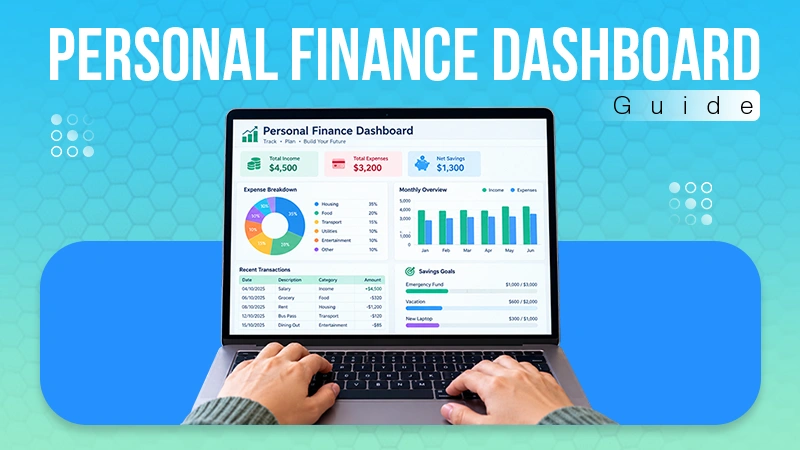
A personal finance dashboard should definitely answer a few questions daily, such as: What money has arrived? Which bills are still due? How much can be spent before the next payday? A spreadsheet helps in bringing all those answers together without needing an elaborate system or a collection of paid applications.
Try to start with a small workbook that you can maintain every day. Then, separate all those information you enter from the calculations that summarise it, and check the totals against your statements. The number of charts on the screen is not useful, but the accuracy of the underlying record is.
Table of Contents:
- Decide Which Decisions the Dashboard Will Support
- Create a Transaction Record You Can Understand
- Build Categories Around the Way You Live
- Separate the Plan From the Actual Record
- Check the Calculations Before Adding Charts
- Show Upcoming Commitments Beside Available Cash
- Keep the Presentation Easy to Read
- Store the Workbook With Privacy in Mind
- FAQs
Decide Which Decisions the Dashboard Will Support
Before building the sheet, choose the practical purpose. There are many things you will think of doing, such as plan the next month, track irregular bills, or understand how subscriptions affect available spending. Write down answers for all.
If you also work for yourself, then keep personal finances separate from business records. Income available for personal use, household costs, and personal commitments are all reflected by the household dashboard.
Business turnover does not automatically represent money you can spend at home.
ZingMatrix’s guide to productivity software describes spreadsheets as tools for organising and calculating information. This also works on the same principle: start with dependable inputs, then use calculations to make the next decision easier
Create a Transaction Record You Can Understand
For each transaction, use one row. The important columns should be date, account, description, category, amount, and whether the item has cleared.
Select a good way to display money coming in and money going out, and explain it in a short note at the top.
Try to store dates and amounts as actual spreadsheet values, and keep the original description so that it helps in identifying an entry. Also, don’t forget to preserve enough information to find the transaction on a statement if you are shortening descriptions for readability.
Spending should be separated from transfers between your accounts; if not, then moving money into savings can appear to be an expense, and moving it back can look like new income.
Try to exclude transfers from ordinary income and spending totals.
Build Categories Around the Way You Live
Start with a manageable set of categories. Split a category only when the extra detail would change a decision. Too many categories can turn maintenance into a chore.
Always begin with what you can manage, like
- Housing
- Utilities
- Food
- Transport
- Subscriptions
- Existing repayments
If the household members are planning to share expenses, then decide whether the workbook tracks the whole household or only your contribution. A joint bill entered in full with an individual share can create misleading totals.
Record both the expected date and the amount you need to set aside for annual or irregular expenses.
A monthly average helps with planning, but the payment calendar still needs to show when the actual charge will occur. Keep those two views distinct.
Separate the Plan From the Actual Record
With expected income and category limits, design a simple monthly plan; keep actual transactions in their own sheet.
The summary will help in comparing the two, but it should remain clear which figures are estimates and which come from completed transactions.
To total everything, use a consistent month or date range. Also, keep in mind that the summary of spending from the first day of the month should not be compared with income from a different period. That’s why you should check the earliest and latest dates included, especially when importing a statement.
The following structure is enough for a useful first version. Add another section only when you have a question that the existing views cannot answer.
| Section | What it contains | Question it answers |
|---|---|---|
| Transactions | Dated income, expenses, and transfers | What actually happened? |
| Monthly plan | Expected income and category limits | What can the household afford? |
| Payment calendar | Upcoming bills and repayment dates | What is due before payday? |
| Summary | Totals for a clearly defined period | How does actual spending compare? |
| Checks | Missing categories and duplicate warnings | Which entries need attention? |
Check the Calculations Before Adding Charts
A small set of transactions is good to work with so that you can calculate it independently. Add an expense, income, and a transfer. Verify that the sheet classifies each correctly and that the summary changes when an amount or date changes.
Do check how refunds, missing categories, and duplicate entries are managed.
If you import the same statement periods, it can add the same purchase twice.
Keep a record of the last date imported and compare unfamiliar entries with the original account record.
Protect calculation cells against accidental edits while leaving the entry area usable. Google’s guidance on protecting sheets and ranges explains the available controls.
It often creates a sheet protection not as a security measure, but people with access may still copy or export data.
Show Upcoming Commitments Beside Available Cash
When you see what needs to be covered, then a balance figure becomes more useful. That’s why it’s important that you list upcoming bills and existing payments. Try to avoid treating an anticipated payment as already received.
If your income varies, then create a safety protocol too. Change the income input and check whether essential costs remain covered.
A dashboard should display where a plan becomes tight instead of just assuming that every month will go well.
For UK readers researching loans for bad credit, the dashboard can help review repayment capacity alongside existing commitments. Compare the APR, fees, term and total amount repayable, and enter any proposed repayments before deciding.
MoneyHelper’s guide to deciding whether to borrow encourages checking whether you can wait and whether repayments are affordable.
If your sheets are showing repeated shortfall, then address the issue first and seek free debt guidance where needed. Credit products and eligibility depend on location.
Keep the Presentation Easy to Read
Always use clear labels and simple number formats. Keep all the selected period near the main totals so a reader can see what the figures cover.
Don’t mix unlike values instead keep currency consistent, and label any amount converted from another currency.
A small category comparison or trend chart can be useful after the data is reliable. Give each chart a specific question to answer. Avoid a large collection of gauges or colours that suggests more precision than the underlying estimates support.
Do a small category comparison or trend chart that can be helpful. Make each chart a specific question to answer.
Try to avoid a large collection of gauges or colours that suggests more precision than the underlying estimates support.
Missing information should be displayed plainly. Do keep incomplete entries visible until they are resolved, and differentiate a planned amount from a confirmed one.
Store the Workbook With Privacy in Mind
Only include your personal details that are important to understand the finances and take finanacial decisions. In a routine transaction workbook, data like full account numbers, login details, and identity documents do not belong.
Review everything before you share permission with another person. If someone just has to read the summary obviously doesn’t need editing access to every transaction. Always keep a backup or version history and check that you can restore an earlier copy if a calculation is accidentally overwritten.
At a regular weekly review, use the dashboard. Reconcile new transactions, check the next payments, and update the plan. A small, right workbook that you maintain helps you more than a complicated system you stop opening after the first month.
FAQs
Is there a free Excel template for personal finance?
What is the best free Excel spreadsheet?
Google Sheets is the best free Excel spreadsheet.
What AI is replacing Excel?
AI tools like Quadratic and Shortcut are replacing Excel.